
Supporting any product can be overwhelming, especially if there is a large footprint and many integrations to the platform. The ServiceNow training team recently created a course of best practices for troubleshooting, and ways to approach fixing the issue(s).
Here is a summary of the best practices and order of operations on how to troubleshoot and respond in order to offer top-notch, white glove service to your business and product owner.
- Gather requirements properly up front. The key to being able to successfully, and quickly, fix a issue is to understand the request or incident first. You can’t be afraid to look like you ‘don’t know something’, and you can’t be afraid to ask questions. Many times support portals don’t offer the service of requirement gathering up front on the form, and the business won’t have someone on their side either, so the incident or request ticket can be vague and even misleading. You must take the time to ensure you understand the problem or request, to properly fulfill it.
Recommendations for best practice:
- Call the customer and ask detailed questions until a complete understanding of the issue is achieved
- Request a virtual meeting using a screen share application (why? because it is a great way to watch the customer replicate the issue – show them how to record it even! the additional information may be obtained that was not mentioned before)
Key Takeaway: Solving all the problems you can find, while trying to understand the original issues, does not solve the client’s issue. Focus on solving the submitters original issue. Do not make assumptions.
Key Artifacts: the what, where, when and who – it’s not just for journalist!
- Screenshots or videos
- How often is this occurring?
- Clearly written detailed expected behavior (think of this as your scope)
- Clearly written explanation of steps taken to cause the issue / what conditions or scenario is causing the issue
- The environment the issue is
- Any users/groups impacted by the issue
- Make sure to ask/research to document any known upgrades/patches/potential changes from CM that may be part of this issue
2. Platform Architecture: Understanding your log files. Now that you know the issue, it’s time to start fixing it. But how do you do that? Where do you go? (“Where’s my Now Assist search?!” 🙂 )
Every software product has logs. Whether it’s available to you or not, is really the only question you need to ask. Luckily, ServiceNow provides 3 key types of log files for you to utilize when troubleshooting.
- Files on the application node, for example, localhost, threads, and XMLstats.
- Tables in the database that log information, for example, transaction logs.
- Other logs, such as Wrapper, Mail, Loadbalancer, and MID Server.
In my experience, I usually use the tables in the database (looking at transaction logs) more than the others.
Using Log files: key takeaways
- Deleted records: you access this as admin by going to the navigation System Definition > Deleted Records. The main thing about this is to ensure the table is under audit rules. If you have a custom table, or the no_audit_delete field is active on a existing table, deleted records won’t be tracked.
You can add a table to the ‘delete audit’ list by updating the user interface properties. Go to Properties > System Properties > UI Interface Properties and locate ‘List of system tables (beginning with “sys_”, comma separated) that will have the delete audited. By default, system tables do not have the delete audited.’

- Note: if you plan on restoring records, you need to make sure the ‘Restore Deleted Record’ plugin is active
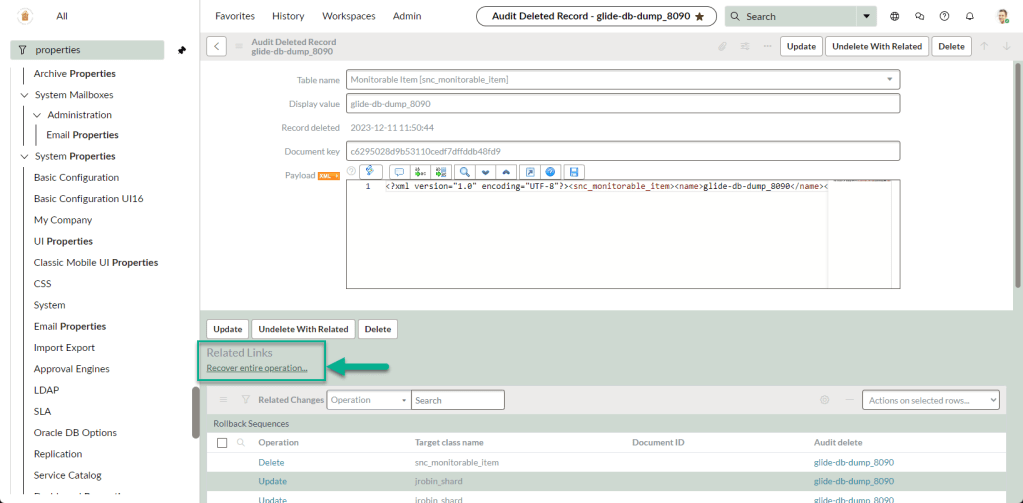
- Undelete with related – This button recovers the record, all cascaded deletions, and other database actions that resulted from the deletion. This option is shown when a rollback context is available for the delete.
- Recover entire operation – If this record was deleted as part of another deletion, all records from the parent deletion are recovered including all cascaded items and other database actions.
- If this record is the top-level deletion, then this is the same as Undelete with Related.
- This option is shown when a rollback context is available for the delete.
Sample:
2. Transaction Logs: my favorite place to be! Or, at least where a lot of my research tends to be. As admin, you can locate these System Logs > Transactions.
Like the course, I tend to look at system id, created on, and URL. URL is very useful when trying to match up what the user says they were doing, and maybe what really occurred.

3. Stats.do : In the navigation as admin, type ‘stats.do’ to bring up key platform information. If you work with NOW Support or Impact Services, they will ask you (typically) for the following:
- The name of the instance
- The build information of the instance and MID Server, including the release version
- The status of the F5 load balancer distributing connections between the clustered nodes
- The name of the application server to which the user is connected
- The name of the ServiceNow instance node
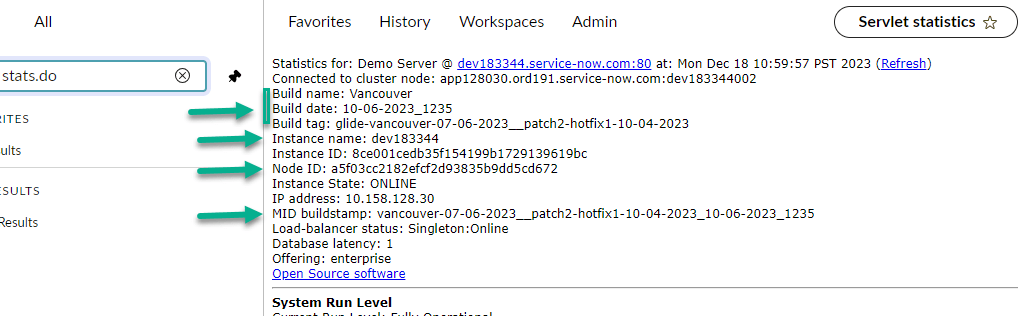
Useful Stats
I think a lot of people who use the platform are aware of stats.do. However, are you aware there are other stats you can use to troubleshoot?
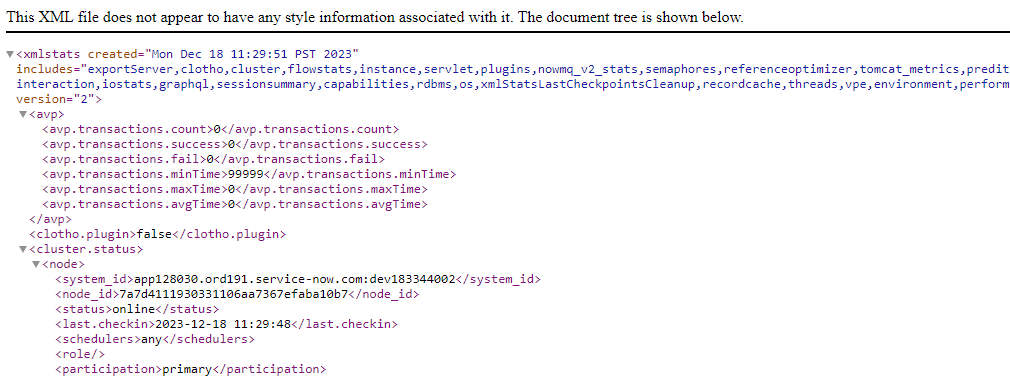
xmlstats.do
In the URL of your PDI or instance, add xmlstats.do – https://%5Binstance_name%5D.service-now.com/xmlstats.do
When you do this, it may take a moment to load. It will look something like this:
Threads.do
A thread is the path a program takes when it executes. All programs have at least 1 thread provided by the JVM (mentioned above in the stats) when the program starts to execute.
Threads.do allows a admin to see stack traces for each currently running thread. A stack trace is a collection of records that store the applications movement during execution.
So for example, if you are having a lag or something is taking time to load, you can see the stats.do to see how long a thread has been running, then use thread.do to take a closer look at it. By taking a look at the stack trace you can look at the business rules, script includes faster – as long as you have the sys_id.
Debugging
I am going to only hit on best practice highlights, as debugging is a serious job and should have it’s own dedicated blog for details around it.
Once all the requirements are properly gathered and we see the issue being recreated, the next step is to begin the debugging process.
In general the hierarchy goes like this:
- Debug the user session
- Debug the issue (globally)
- Debug the affected script – last, not first, but last.. some of you are trigger happy and go here first
Global debugging is discouraged on business rules or SQL statements. ServiceNow instances are constantly running background jobs that are captured when global debug options are turned on, making it virtually impossible to retrieve useful data.
– ServiceNow Troubleshoot the Now Platform course
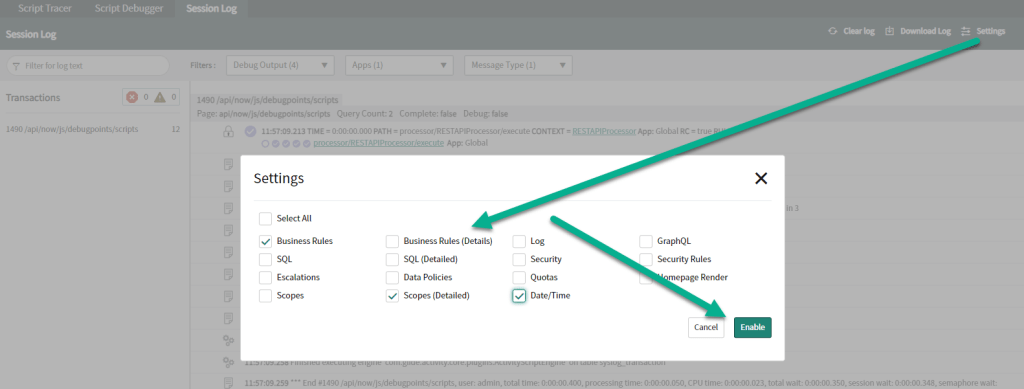
Debugging the user session is helpful to understand:
- What query statement is used
- Which Access Control Lists (ACLs) passed and failed
- Which script error messages are issued
- Which business rules are executed
- What is the result of a business rule
When enabling the debug feature, don’t forget to limit the options that will be returned via ‘Settings’. Once active (by going to System Diagnostics > Session Debug) it will remain active until disabled
To turn it off: System Diagnostics > Session Debug ‘Disable All’
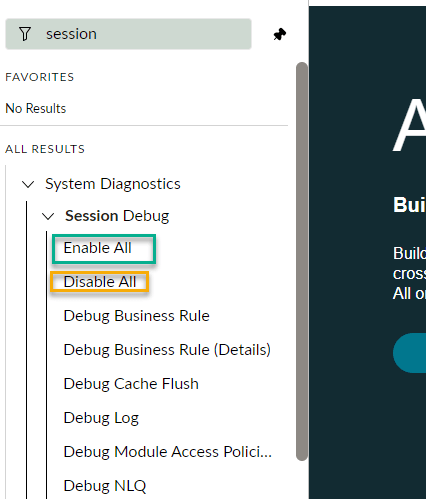
In the learning course, ServiceNow uses the following as a example but from real world experience I can tell you: this is extremely common.
Scenario: a state field changes from one state to another for no known reason. For example, New to Work in Progress, or resolved. Where do you start? Debug the business rule
Global Debugging
GOOD PRACTICE
Adjusting global properties is generally not recommended, as it affects all users, fills up log files quickly, affects the instance workers, and limits the space in the database. We recommend using this option only if ALL other troubleshooting techniques do not return any relevant information.
If it becomes necessary to turn global debug properties on, remember to turn them off after gathering the necessary information.
ServiceNow Troubleshoot the Now Platform course
Some properties are available in a system properties form, but some lesser-used properties are available only from the System Property [sys_properties] table. Sometimes, the property does not exist in a base instance but can be added if you need to change the default value. See my other post, ServiceNow QuickByte: System properties — use props to deliver OOTB functionality for a “QuickByte” on system properties and where to locate them.
A slight change for some of the older system users and newbies alike: Most applications now have a clearly marked, easy to get to, navigation link right in the navigation ‘All’ dropdown. For example, Incident > Administration > Incident Properties or Change > Administration > Change Properties or Service Catalog > Properties. Just type ‘properties’ in the navigation to see all keywords with ‘properties’ available.
If you are looking for a property to modify, or if you just can’t find it under ‘sys_properties.list’ but you know where it is in the specific application properties list, just right click on the property name in the application list and ‘edit property’
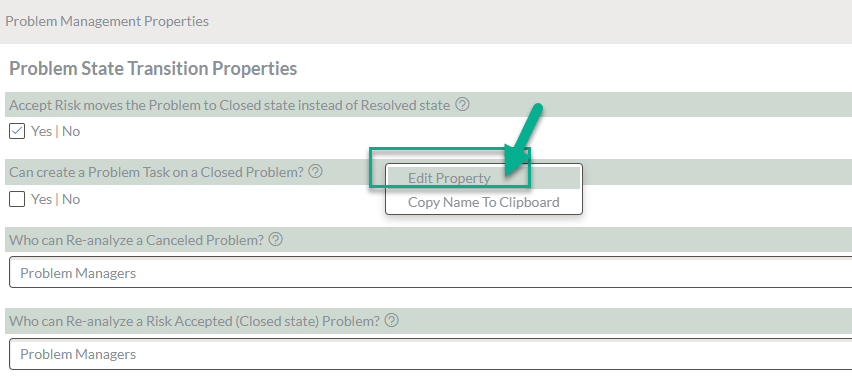
In order to continue your journey on debugging with ServiceNow, please check out the following resources for detailed hands-on exercises and reference information for training:
- Debugging Business Rules
- Debugging Access Controls – Session Log
- Debugging Tests
- Debugging – Best Practices
- Scripting – Technical Best Practices
Client-Side Debugging
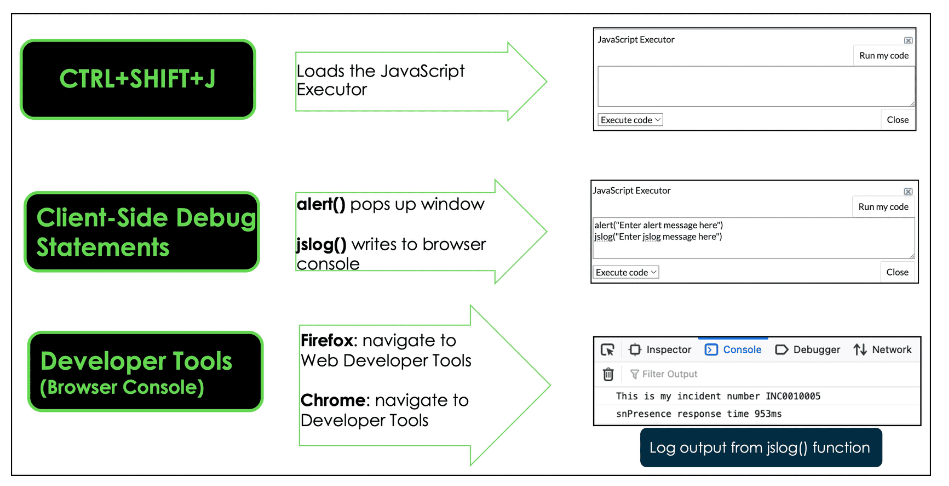
CSD involves a different process, but in general here is how it maps out:

Source: ServiceNow – Troubleshoot the Now Platform
ServiceNow Client Side Debugging Tool – Shortcuts
Search for Existing Knowledge
Once you have nailed down the technical understanding and what may be the issue, go back to the general process for troubleshooting “order of operations”. The order is as follows:
- Product documentation
- ServiceNow Support’s public knowledge base
- Customer knowledge base
- Open and closed incidents, problems, or change records
- ServiceNow Community articles
- ServiceNow Developer site
- Use your favorite search engine
Once you are ready, make sure to review specific keywords, search errors (specific words from error message, log data, matching cases for results, etc) and then specific fields as needed.
Documentation Matters
The last best practice is basic customer service. Put yourself in the shoes of the person who reported the issue, and treat them how you want to be treated.
- Update the notes and comments each day, or according to your companies policy. Make private work notes every day if it’s not acceptable to update the public comments.
- Make sure to document all logs, errors in logs, traces and any other testing/research performed – on the incident or request record itself (really, whatever record you are using the track the work and work with users). Clearly note the root cause work, as this will matter greatly if there are further issues or problems around what you are troubleshooting.
- Steps to reproduce and steps to fix – developers hate this part, but I am pulling it out again to highlight it. These are your technical steps. This is critical for understanding the issue and resolving it even faster if it occurs again. This is also where you add the issue to the KB and make sure “How to Fix” is filled out in the KB.
- Call don’t just email or mention – call the submitter if you are not able to get a response quickly; make it your priority to update them. Instead of sending a KB article they may or may not have access too, send the KB link and then call them (or ping them if you actively use messaging) and make sure they can access the article.
Let’s recap…
In general, the process to troubleshoot has a ‘order of operations’.
- Make sure to gather detailed requirements, with stats.do information, and ensure you understand the exact issue the submitter is having or requesting to be changed or fixed.
- Once you have the requirements, begin the technical troubleshooting process – start with user session debugging
- When you finish debugging, revisit the research order and search:
- Product documentation
- ServiceNow Support’s public knowledge base
- Customer knowledge base
- Open and closed incidents, problems, or change records
- ServiceNow Community articles
- ServiceNow Developer site
- Use your favorite search engine
- On-going, but definitely prior to closing the ticket – make sure you thoroughly document the issue and create a KB article with fix steps
- Documentation should include and is not limited to:
- The caller
- The issue
- The steps taken to cause the issue
- The steps taken to research the issue
- The technical steps taken to fix the issue
- The testing steps taken to get final sign-off from the submitter for PROD release
- Formal sign off (even if it’s in the notes) from business
- Documentation should include and is not limited to:
- Additional best practices: take ownership of the issue, update the submitter each day via call or message chat, add notes and update to the record being worked in the event the submitter speaks to someone else for a update and treat the issue the way you would like to be treated when you have an issue.
If you follow these basic best practices for troubleshooting, you are heading in the right direction for getting the maximum return on investment for platform administration.
Discover more from Julia's Dev
Subscribe to get the latest posts sent to your email.
 Julia's Dev